<?xml version="1.0" encoding="utf-8"?>
<feed xmlns="http://www.w3.org/2005/Atom">
            <title type="text">Howard's Blog</title>
    <updated>2023-06-29T00:17:39+08:00</updated>
        <id>http://blog.howardleo.top</id>
        <link rel="alternate" type="text/html" href="http://blog.howardleo.top" />
        <link rel="self" type="application/atom+xml" href="http://blog.howardleo.top/atom.xml" />
    <rights>Copyright © 2026, Howard's Blog</rights>
    <generator uri="https://halo.run/" version="1.6.0">Halo</generator>
            <entry>
                <title><![CDATA[NPM安装Electron依赖时报404的解决方法]]></title>
                <link rel="alternate" type="text/html" href="http://blog.howardleo.top/archives/how-to-fix-install-electron-dependency-404-error" />
                <id>tag:http://blog.howardleo.top,2023-06-28:how-to-fix-install-electron-dependency-404-error</id>
                <published>2023-06-28T23:20:21+08:00</published>
                <updated>2023-06-29T00:17:39+08:00</updated>
                <author>
                    <name>YOLO_Emperor</name>
                    <uri>http://blog.howardleo.top</uri>
                </author>
                <content type="html">
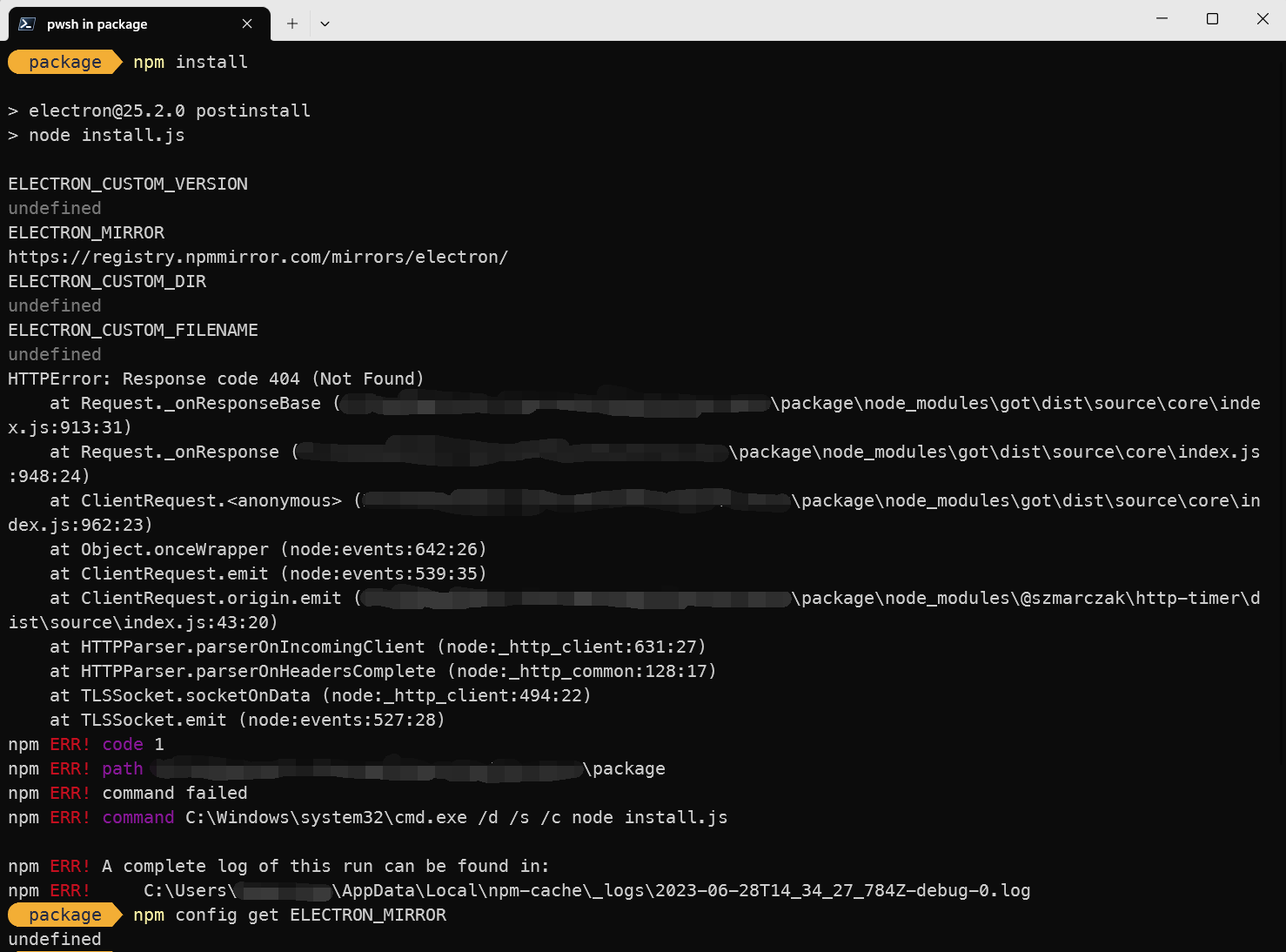
                        <![CDATA[<h3 id="%E9%97%AE%E9%A2%98%E8%BF%87%E7%A8%8B%EF%BC%9A" tabindex="-1">问题过程：</h3><p>今天在调研一个Electron项目时，依赖安装到Electron突然报错：</p><pre><code class="language-bash">HTTPError: Response code 404 (Not Found)    at Request._onResponseBase (*\package\node_modules\got\dist\source\core\index.js:913:31)    at Request._onResponse (*\package\node_modules\got\dist\source\core\index.js:948:24)    at ClientRequest.&lt;anonymous&gt; (*\package\node_modules\got\dist\source\core\index.js:962:23)</code></pre><p>查搜索引擎<strong>猜测</strong>这可能是npm registry设置成淘宝源导致的，于是我去查了查registry：</p><pre><code class="language-">npm config get registryhttps://registry.npmjs.org/</code></pre><p>这就很奇怪了，我的registry是npm官方源没错，但却出现了设置成第三方源出现的问题。</p><p>于是我就跑到electron安装所依赖的’@electron/get’包中找url的拼法，插了一堆console.log()查到ELECTRON_MIRRROR变量是<code>https://registry.npmmirror.com/mirrors/electron</code>：</p><p>（在写这篇博文的过程中我才意识到：Electron的资源并不是到npm registry上拉的，这里拉的资源是electron GitHub仓库Release中每次构建出来的artifact，Electron以该artifact为基底结合main和renderer代码生成最终的包）<br /><strong>注意，ELECTRON_MIRROR不等同于npm registry！！</strong></p><p><img src="/upload/2023/06/fix_electron404_npm_registry_query_result.png_V2.png" alt="在npm中查询ELECTRON_MIRROR" /><br />但是<code>ELECTRON_MIRROR</code>参数在npm中是undefined，那么问题出在哪里呢？</p><p>根据这篇文章：<a href="https://newsn.net/say/electron-mirror.html#%E8%A7%A3%E5%86%B3%E6%96%B9%E6%A1%88%E4%B8%80%EF%BC%88win%E7%B3%BB%E7%BB%9F%E6%8E%A8%E8%8D%90%EF%BC%89" target="_blank">https://newsn.net/say/electron-mirror.html</a></p><blockquote><p>对于win系统，可以修改全局变量，很简单。新建用户全局变量即可。如下图所示：<br />名称为ELECTRON_MIRROR，值为：<a href="http://npm.taobao.org/mirrors/electron/" target="_blank">http://npm.taobao.org/mirrors/electron/</a> 。</p></blockquote><p>一查系统的用户全局变量，果真如此：<br /><img src="/upload/2023/06/fix_electron404_system_user_env_variable.png" alt="用户全局变量" /></p><h3 id="%E8%A7%A3%E5%86%B3%E6%96%B9%E6%A1%88%EF%BC%9A" tabindex="-1">解决方案：</h3><p>如果您在之前已经设置了系统的环境变量，需要继续使用淘宝源的，把ELECTRON_MIRROR设置为：<br /><a href="https://npmmirror.com/mirrors/electron/" target="_blank">https://npmmirror.com/mirrors/electron/</a><br />即可，如果您不需要使用淘宝源，则直接删除ELECTRON_MIRROR，让其fallback到GitHub下载。</p><p>当然，也可以在npm中设置ELECTRON_MIRROR：<br /><code>npm config set ELECTRON_MIRROR https://npmmirror.com/mirrors/electron/</code></p><p>我的建议是在npm中设置，因为每次下载Electron依赖这个行为在npm中发生，后续出现问题也可以很快的在npm范围内定位。<br />当然，我是不会忘记系统变量里还有ELECTRON_MIRROR这一茬了啦（苦笑）</p>]]>
                </content>
            </entry>
            <entry>
                <title><![CDATA[Electron打包问题复盘]]></title>
                <link rel="alternate" type="text/html" href="http://blog.howardleo.top/archives/electron-packaging-problem-review" />
                <id>tag:http://blog.howardleo.top,2023-04-02:electron-packaging-problem-review</id>
                <published>2023-04-02T20:00:00+08:00</published>
                <updated>2023-04-02T20:12:01+08:00</updated>
                <author>
                    <name>YOLO_Emperor</name>
                    <uri>http://blog.howardleo.top</uri>
                </author>
                <content type="html">
                        <![CDATA[<p>技术栈：React, Electron<br />使用环境：<a href="https://github.com/electron-react-boilerplate/electron-react-boilerplate" target="_blank">electron-react-boilerplate(GitHub仓库)</a></p><h3 id="%E9%97%AE%E9%A2%98%E8%BF%87%E7%A8%8B%EF%BC%9A" tabindex="-1">问题过程：</h3><p>打包完打开exe内部白屏，一开始以为是我把打包的环境搞坏掉了构建漏了东西。重新从仓库拉了环境合入代码仍然复现这个问题，后来尝试将 <code>mainWindow.loadURL(resolveHtmlPath('/'))</code> 中的 <code>/</code> 改成 <code>index.html</code>，问题表现为：背景正常显示，内容显示：</p><pre><code class="language-">Unexpected Application Error! 404 Not Found</code></pre><p>以为是 <code>renderer.js</code> 没正常读取，打开devtool发现 <code>renderer.js</code> 也能正常读取（甚至还能从 <code>webpack://</code> 底下看到源代码）。<br />后来一通查资料发现这个问题很可能出现在Router上，将原来用的<strong>BrowserRouter</strong>改为<strong>HashRouter</strong>，问题解决。</p><h3 id="%E9%97%AE%E9%A2%98%E5%A4%8D%E7%9B%98%EF%BC%9A" tabindex="-1">问题复盘：</h3><p>起初在写路由的时候按照Web端惯例用了<strong>BrowserRouter</strong>来写的，后来调试显示路由错了下意识把 <code>mainWindow{proto: BrowserWindow}.loadURL(resolveHtmlPath('index.html'))</code> 里的<code>index.html</code>调成了 <code>/</code> 。后续开发过程中确实也没有遇到路由问题，也就没去管它，没想到这玩意儿会影响到打包。后续去看看Electron实际访问的什么路径😁</p>]]>
                </content>
            </entry>
            <entry>
                <title><![CDATA[Yubikey折腾小记]]></title>
                <link rel="alternate" type="text/html" href="http://blog.howardleo.top/archives/get-started-of-yubikey" />
                <id>tag:http://blog.howardleo.top,2022-11-12:get-started-of-yubikey</id>
                <published>2022-11-12T21:06:01+08:00</published>
                <updated>2022-11-12T23:33:39+08:00</updated>
                <author>
                    <name>YOLO_Emperor</name>
                    <uri>http://blog.howardleo.top</uri>
                </author>
                <content type="html">
                        <![CDATA[<h1 id="%E5%89%8D%E8%A8%80%EF%BC%9A" tabindex="-1">前言：</h1><p>前阵子CloudFlare搞Yubikey清仓大甩卖，一个5 NFC只要10刀，5C NFC也只要11.5刀，超级便宜，趁此机会，通过朋友海淘来了一对Yubikey（一个5 NFC、一个5C NFC），具体海淘经历不做陈述，这篇博文主要是分享我的Yubikey折腾经验。</p><p>事先声明一点：笔者本篇文章都是基于在Windows系统下操作的经验。对，<strong>Win~~~dows!</strong></p><h1 id="yubikey%E7%94%A8%E4%BD%9Cssh-key" tabindex="-1">Yubikey用作SSH Key</h1><p>说到SSH Key，我首先想到的是OpenSSH，于是乎我就在Terminal中敲入如下指令：</p><pre><code class="language-">ssh-keygen -t ed25519-sk -O resident -f &#39;保存密钥对的路径&#39;</code></pre><p>解释一下，这条命令是让OpenSSH基于ed25519算法生成密钥，并存储到Yubikey的FIDO2应用区，而ed25519后面跟的这个“sk”则代表&quot;Security Key&quot;——安全密钥。<br />这时，我遇到了第一个问题，系统自带的OpenSSH是8.6版本，不支持生成这个key，网上好多博文说OpenSSH从8.2版本开始就支持Security Key了，然而事实是：他就是给我弹不支持的算法。这个问题通过升级到8.9版本的OpenSSH就能解决。</p><blockquote><p><strong>So, FXXK You Windows!!!</strong></p></blockquote><p>于是乎我放弃直接使用OpenSSH的方法，正好我平时SSH一般Termius用得多，Termius自己集成了一套OpenSSH，用作登录服务器什么的倒也没出什么问题。<br />操作步骤：管理员身份打开Termius，然后在Termius的设置-Keychain里点击FIDO2按钮，然后Import FIDO2 Key即可。<br />注意：如果你未曾使用OpenSSH生成过SSH Key，Termius很可能会在你Import FIDO2 Key时提示你要用管理员权限权限打开（即使你真的用管理员身份打开也会出现这个提示。），这时有两个解决方法：一是直接用Termius生成Key，选择Generate FIDO2 key即可，另一种方式是先用OpenSSH生成一次Key，生成的指令如上，然后再用Termius导入，两者最终都会导入Termius，从结果上来说并没有区别。</p><h2 id="github%E7%9A%84ssh-key" tabindex="-1">GitHub的SSH Key</h2><p>那么，GitHub的SSH Key怎么解决呢？我用Yubikey Manager在PIV区生成了一个Key然后用<a href="https://github.com/buptczq/WinCryptSSHAgent" target="_blank">WinCryptSSH</a>这个工具导出了公钥添加到GitHub上，然后让WinCryptSSH作为Git Bash和Windows Hello的中间件，倒也完美解决了这个问题。<br />这里有个要注意的点：首先，如果你曾经生成过SSH Key，那么用WinCryptSSH导入的时候可能出现多个Key，注意辨别哪个是这次生成的，建议把以前生成过但现在已经完全不适用的Key移除掉：Win+R certmgr，到个人-证书下面找到对应的Key，名称就是你在WinCryptSSH中看到的公钥最后显示的那串字符，通常这串字符和公钥内容之间有一个空格。</p><h1 id="yubikey%E7%94%A8%E4%BD%9Cgpg-key" tabindex="-1">Yubikey用作GPG Key</h1><p>如果先前已经生成过GPG Key可以使用<code>ykman openpgp reset</code>来重置openpgp区。<br />我这边是采取主密钥只负责Sign，再由主密钥签发出负责Encrypt、Authenicate和Certify的密钥的方式。<br />首先，先生成主密钥</p><pre><code class="language-">gpg --full-gen-key --expert</code></pre><p>根据提示填写算法，有效期，UserID，E-Mail等。<br /><strong>注意：如果您需要将此Key用作GitHub的GPG签名，此处的E-Mail需填写账户绑定的邮箱，否则GitHub会打上Unverified标签。</strong><br />然后，生成子密钥，先查询上一步生成Key的ID：</p><pre><code class="language-">gpg --fingerprint --keyid-format long -K</code></pre><p>然后编辑这个Key</p><pre><code class="language-">gpg --expert --edit-key &#39;这里改成Key ID&#39;</code></pre><p>然后生成子密钥，参考这篇<a href="https://www.eastack.me/blogs/yubikey-guide.html#_%E7%94%9F%E6%88%90_gpg_%E5%AF%86%E9%92%A5" target="_blank">文章</a>。</p><p>生成完子密钥后导出所有密钥：</p><pre><code class="language-"># 公钥gpg -ao public-key.pub --export &lt;fingerprint&gt;# 主密钥，请务必保存好。# 注意&lt;fingerprint&gt;后面的 !# 表示只导出这一个私钥，若没有的话默认导出全部私钥。gpg -ao sec-key.asc --export-secret-key &lt;fingerprint&gt;!# 子密钥gpg -ao sign-key.asc --export-secret-key &lt;fingerprint&gt;!gpg -ao auth-key.asc --export-secret-key &lt;fingerprint&gt;!gpg -ao encr-key.asc --export-secret-key &lt;fingerprint&gt;!</code></pre><p>最后将生成的Key导入你的Yubikey：</p><pre><code class="language-"># 查看智能卡设备状态gpg --card-status# 写入GPGgpg --edit-key &lt;fingerprint&gt; # 主密钥# 选中第一个子密钥# 选中后对应key最左面会显示“*”号，再次输入key 1将反选这个keykey 1# 写入到智能卡keytocard# 依次进行，对应选择，使密钥用途和插槽用途相匹配。# 保存修改并退出save# 再次查看设备状态，可以看到相关槽位有密钥信息了。gpg --card-status</code></pre><p>Git签名配置：<code>git config --global user.signingkey &lt;fingerprint&gt;</code></p><p>此时，如果你尝试使用Yubikey进行签名，有可能会弹出<code>gpg: signing failed: No secret key</code>的提示，不用想，又是万恶的Windows搞的鬼，输入<code>git config --global gpg.program &quot;你的GnuPG安装路径\bin\gpg.exe&quot;</code>以解决问题。</p><h1 id="yubikey%E7%94%A8%E4%BD%9C2fa" tabindex="-1">Yubikey用作2FA</h1><p>不做过多陈述，基本上支持Yubikey作为账户2FA设备的安全中心都有相应的引导，找到诸如：“安全密钥”、“硬件密钥”之类的选项点进去一步一步操作即可。</p>]]>
                </content>
            </entry>
            <entry>
                <title><![CDATA[Ubuntu Symbolic Link用法]]></title>
                <link rel="alternate" type="text/html" href="http://blog.howardleo.top/archives/how-to-use-symbolic-link-in-ubuntu" />
                <id>tag:http://blog.howardleo.top,2022-08-02:how-to-use-symbolic-link-in-ubuntu</id>
                <published>2022-08-02T14:37:54+08:00</published>
                <updated>2022-08-02T14:48:00+08:00</updated>
                <author>
                    <name>YOLO_Emperor</name>
                    <uri>http://blog.howardleo.top</uri>
                </author>
                <content type="html">
                        <![CDATA[<p>今天在给我的Ubuntu虚拟机装Node.JS的时候想做一个软连接（Symbolic Link），之前坐软连接一直是抄的人家博客作业，这次我来写一篇博文以备后查。</p><p>Symbolic Link Usage：</p><pre><code class="language-">ln -s 源文件绝对路径（包含文件名）  目标绝对路径（包含文件名）</code></pre><p>For Example：</p><pre><code class="language-">ln -s /var/local/nodejs/bin/node /bin/node</code></pre><p>该命令是将放置于<code>/var/local/</code>的nodejs的bin文件映射到<code>/bin</code>中，以实现设置<code>node</code>为系统的环境变量。</p>]]>
                </content>
            </entry>
</feed>